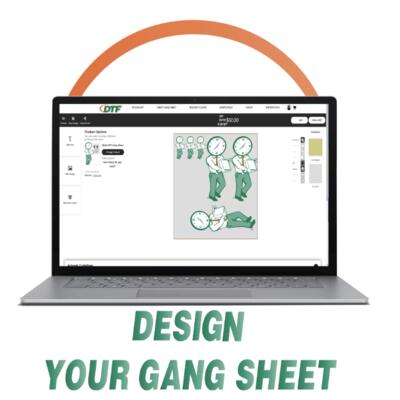
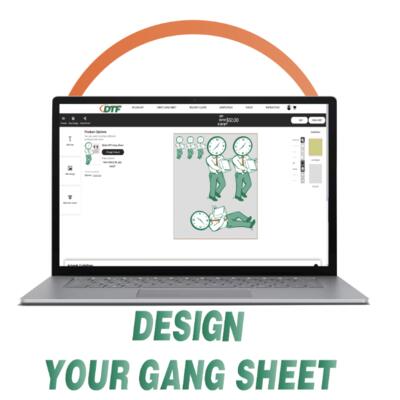
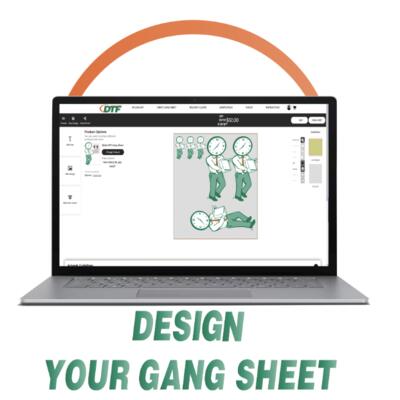
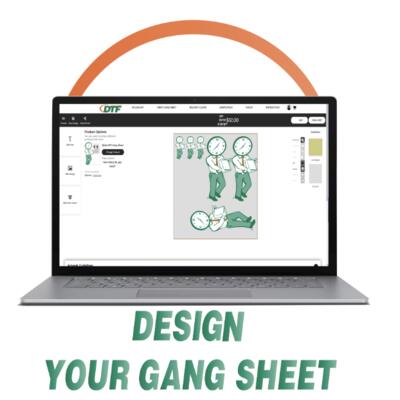
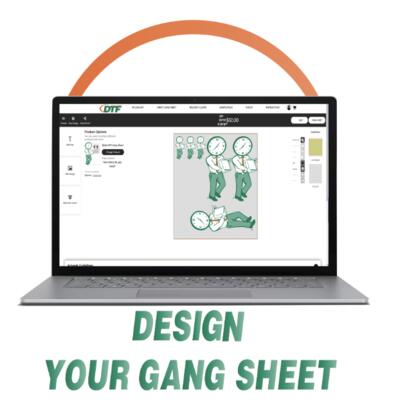
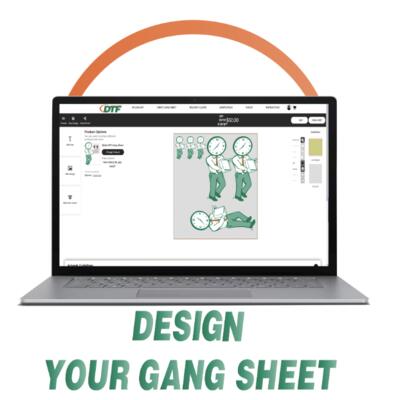
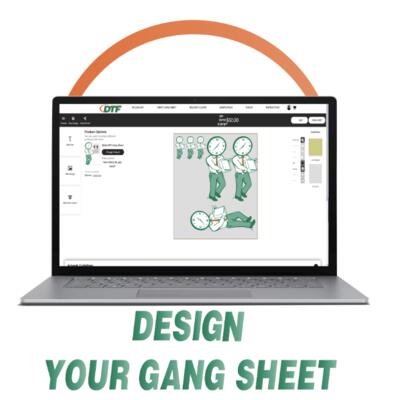
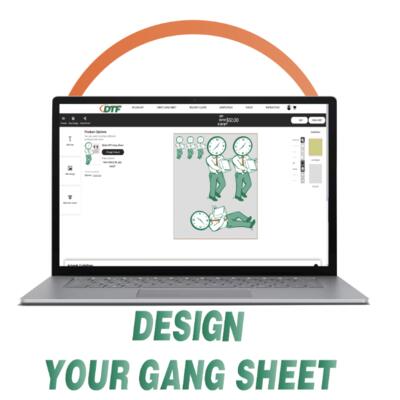
Search before uploading so your decals print correctly.
Complete UV DTF Upload Checklist
- No designs are overlapping.
- Nothing is cut off or hanging outside the sheet edge.
- Leave enough space between decals for cutting.
- Remove unwanted backgrounds before uploading.
- Double-check spelling, names, numbers, QR codes, and dates.
- Make sure every decal is the correct size.
- Use high-resolution artwork whenever possible.
- Upload as PNG whenever possible.
- Do not mirror your artwork.
- Check that tiny text is readable.
- Confirm thin lines are not too small or fragile.
- Make sure your file is final before submitting.
Using Our Online Designer
Upload PNG files whenever possible. PNG files are best because they can preserve transparent backgrounds. JPG files usually upload with a white box behind the design.
You can change the background color in the designer. This helps you see white artwork, clear areas, spacing, and edges.
The designer background color will not print. It is only there to help you preview your artwork while designing.
Remove Background Tool: Our site may try to remove your background, but do not fully rely on it. Always double-check for leftover edges, halos, missing details, or parts removed by mistake.
Designer previews are helpful, but they are not a full proof. Always zoom in and inspect before checkout.
Artwork Setup
Best file type: transparent PNG. PDF can also work.
Avoid screenshots, blurry logos, social media images, Google images, and low-resolution web graphics.
If your image has a white box, black box, colored background, or rough leftover edges, those areas may print.
Do not mirror your artwork. Upload it how you want it to appear on the item.
Use 300 DPI when possible. If the image looks blurry on screen, it will likely print blurry too.
Common UV DTF Decal Sizes
- Small Logo Decals: 2–3" wide
- Cup / Tumbler Logos: 3–5" wide
- Glass Can Wraps: 8–9.5" wide
- Packaging Decals: 2–4" wide
- Jar Labels: 2–4" wide
- Phone Case / Small Items: 1.5–3" wide
- Large Product Decals: 5–8" wide
Pro tip: Measure the item first. Do not guess your decal size.
Best Surfaces for UV DTF
UV DTF works best on smooth, clean, hard surfaces.
- Glass
- Plastic
- Acrylic
- Metal
- Wood
- Ceramic
- Packaging
- Promotional products
Avoid dirty, dusty, oily, wet, heavily textured, or soft fabric surfaces.
Where to Design Before Uploading
- Beginner: Canva, Kittl
- Free Advanced Option: Photopea
- Professional: Adobe Illustrator, Photoshop, CorelDRAW
Design your artwork first, export as PNG or PDF, then upload it to the UV DTF sheet builder.
If using Canva, export with a transparent background if your Canva plan allows it.
Common Mistakes to Avoid
- Uploading screenshots.
- Uploading JPG files with white backgrounds.
- Leaving a background on the image.
- Letting designs overlap.
- Letting artwork hang off the sheet edge.
- Making decals too small.
- Using tiny unreadable text.
- Using very thin lines that may be hard to apply.
- Forgetting to check spelling.
- Applying to dirty or oily surfaces.
- Touching the adhesive side before application.
- Assuming background removal worked without checking.
How to Apply UV DTF Decals
- Clean the surface first.
- Make sure the item is dry.
- Peel the backing carefully.
- Place the decal slowly and accurately.
- Press firmly across the full design.
- Rub/squeegee the entire decal before peeling the top film.
- Peel the top film slowly at an angle.
UV DTF is not heat pressed like apparel DTF. It is a peel-and-stick decal for hard goods.
Final Review Before Checkout
Important: We print exactly what is submitted. Before placing your order, verify transparency, artwork quality, sizing, spelling, spacing, and placement.
- Can you clearly see every decal?
- Is every decal fully inside the sheet?
- Is there space to cut around each decal?
- Are all names and words spelled correctly?
- Are all logos high resolution?
- Did you check the design on a dark and light background?
- Did you confirm the background color is only for preview?
- Did you measure the item the decal is going on?
- Did you maximize your sheet space?