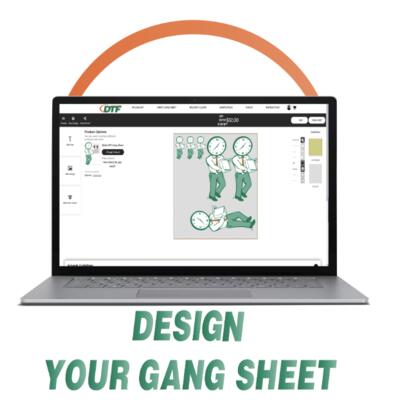
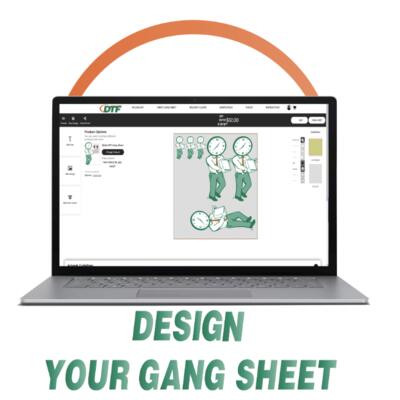
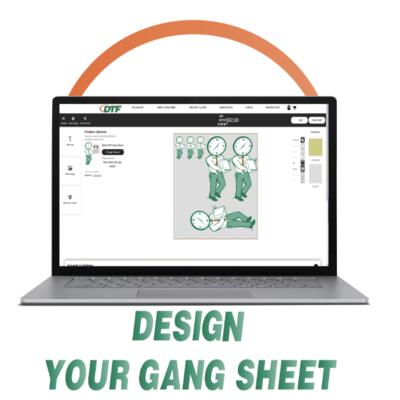
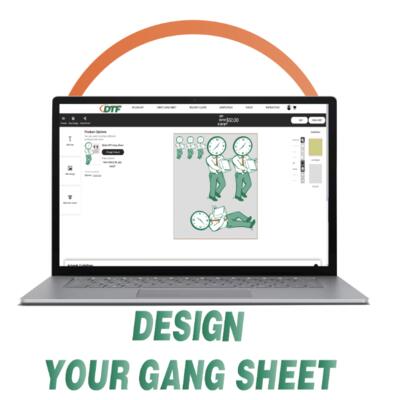
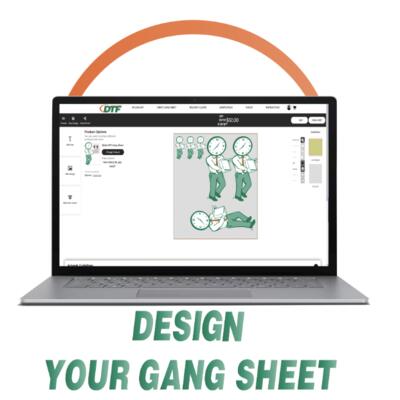
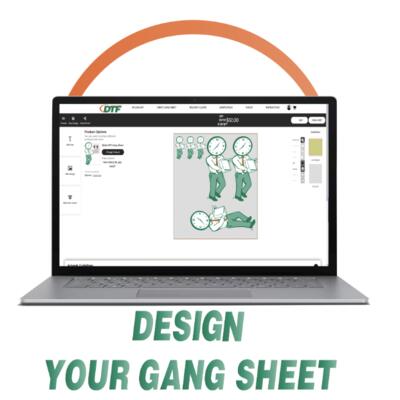
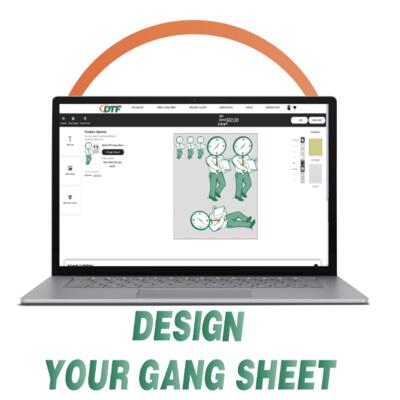
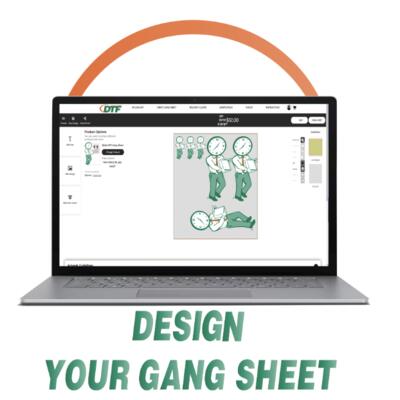
Search before uploading so your gang sheet prints correctly.
Complete Gang Sheet Upload Checklist
- No designs are overlapping.
- Nothing is cut off or hanging outside the sheet edge.
- Leave at least 0.25" between each design for cutting.
- Remove unwanted backgrounds before uploading.
- Double-check spelling, names, numbers, and dates.
- Make sure every design is the correct size.
- Use high-resolution artwork whenever possible.
- Upload as PNG whenever possible.
- Do not mirror your artwork.
- Check that tiny text is readable.
- Zoom in before ordering.
- Make sure your file is final before submitting.
Using Our Online Gang Sheet Designer
Upload PNG files whenever possible. PNG files are best because they can preserve transparent backgrounds. JPG files do not support transparency and often upload with a white box behind the design.
You can change the background color in the designer. This helps you see the area you are working on, check spacing, and spot white artwork or leftover backgrounds.
The designer background color will not print. It is only there to help you see your artwork better while designing.
Use background colors to inspect your file:
- Use a dark background to check white artwork.
- Use a light background to check dark artwork.
- Use a gray background to check transparency and spacing.
Remove Background Tool: Our site may try to remove your background, but do not fully rely on it. Always double-check the final artwork for leftover edges, halos, missing details, or parts removed by mistake.
Designer previews are helpful, but they are not a full proof. Always zoom in and inspect your gang sheet before checkout.
Artwork Setup
Best file type: transparent PNG. PDF can also work.
Avoid screenshots, blurry logos, social media images, Google images, and low-resolution web graphics.
If your image has a white box, black box, colored background, or leftover rough edges, those areas may print.
Do not mirror your artwork. Upload it how you want it to appear on the garment.
Use 300 DPI when possible. If the image looks blurry on screen, it will likely print blurry too.
Common Design Sizes
- Left Chest: 3–4" wide
- Adult Front: 10–12" wide
- Adult Back: 11–13" wide
- Youth Front: 7–9" wide
- Sleeve: 2–4" wide
- Hat Logo: 2–3.5" wide
- Neck Label: 2–3" wide
Pro tip: Measure a shirt with a ruler before ordering. Do not guess your design size.
Where to Design Before Uploading
- Beginner: Canva, Kittl
- Free Advanced Option: Photopea
- Professional: Adobe Illustrator, Photoshop, CorelDRAW
Design your artwork first, export as PNG or PDF, then upload it to the gang sheet builder.
If you are using Canva, export with a transparent background if your Canva plan allows it.
Common Mistakes to Avoid
- Uploading screenshots.
- Uploading JPG files with white backgrounds.
- Leaving a background on the image.
- Letting designs overlap.
- Letting artwork hang off the edge.
- Making designs too small.
- Using tiny unreadable text.
- Forgetting to check spelling.
- Leaving too much empty space on the gang sheet.
- Stacking duplicate designs on top of each other by accident.
- Assuming background removal worked without checking.
Heat Press Instructions
Most DTF transfers press around 300–320°F for 10–15 seconds with medium to firm pressure.
After peeling, repress for 5–10 seconds for better durability.
Always test first because garments, heat presses, and pressure settings can vary.
Final Review Before Checkout
Important: We print exactly what is submitted. Before placing your order, please verify transparency, artwork quality, sizing, spelling, spacing, and placement.
- Can you clearly see every design?
- Is every design fully inside the sheet?
- Is there space to cut around each design?
- Are all names and words spelled correctly?
- Are all logos high resolution?
- Did you check the design on a dark and light background?
- Did you confirm the background color in the designer is only for preview?
- Did you maximize your sheet space?